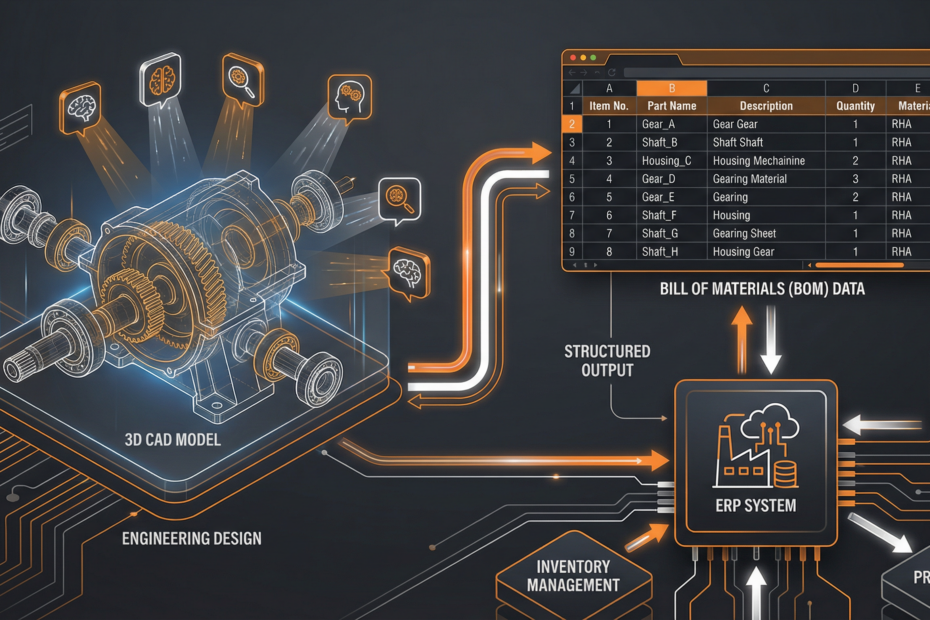
CAD-to-BOM automation is one of the highest-ROI workflows for industrial manufacturers—yet most teams abandon their first attempt after hitting the same 5 failure points. This post covers what breaks, why, and how to fix it using Autodesk APS (Forge) with an AI-assisted validation layer.
Why CAD-to-BOM Is Hard in Practice
The idea is simple: parse the drawing, extract part names and quantities, push to ERP. The reality is far messier. CAD files are designed for engineers, not for machines. Properties are inconsistently named, values aren’t normalized, and the information needed for a BOM is often split across drawings, title blocks, and part files.
The 5 Failure Points
1. Inconsistent Property Names
Different engineers use “Part Number,” “PN,” “P/N,” or “PARTNO.” The Model Derivative API extracts what’s there—but without normalization, your downstream system can’t match records. Fix: Build a property normalization layer that maps aliases to canonical field names before writing to BOM.
2. Assembly Hierarchy vs. Flat BOM
APS extracts an object tree that mirrors the CAD assembly structure—multi-level with sub-assemblies. Most ERPs want a flat, indented BOM. Fix: Write a recursive tree-flattening function that preserves parent-child relationships and computes rolled-up quantities.
3. Missing or Incomplete Properties
APS extracts what’s in the file. If engineers didn’t fill in material or finish fields, they’re blank. Fix: Use an LLM to infer likely values from part name, geometry context, and historical BOM data—and flag low-confidence inferences for human review rather than silently inserting wrong values.
4. 2D Drawing vs. 3D Model Mismatch
When a customer sends a 2D PDF drawing, there’s no object tree to extract. APS can translate PDFs but the metadata extraction is different. Fix: Combine APS PDF translation with an OCR + LLM layer to extract title block data, BOMs embedded in the drawing, and callout notes—then merge with any 3D model data if available.
5. ERP Field Mapping Drift
The BOM fields your ERP expects change over time as product lines evolve. Hard-coded field mappings break silently. Fix: Maintain a versioned mapping config (JSON/YAML) and add a validation step that checks extracted BOM fields against the ERP’s current schema before submission.
A Practical Pipeline Architecture
# Step 1: Upload file to APS OSS
oss_client.upload_object(bucket_key, file_name, file_data)
urn = base64.b64encode(f"urn:adsk.objects:os.object:{bucket_key}/{file_name}").decode()

# Step 2: Translate to SVF2 + extract metadata
md_client.submit_job(urn, output_formats=[{"type":"svf2","views":["2d","3d"]}])
await poll_until_complete(urn)

# Step 3: Extract object tree and properties
tree = md_client.get_object_tree(urn, model_guid)
props = md_client.get_all_properties(urn, model_guid)

# Step 4: Normalize and flatten
bom_items = normalize_properties(props)
flat_bom = flatten_assembly_tree(tree, bom_items)

# Step 5: AI validation - fill gaps, flag anomalies
validated_bom = ai_validator.validate_and_enrich(flat_bom, context=project_context)

# Step 6: Push to ERP
erp_client.create_bom(job_id, validated_bom)
What “AI-assisted validation” actually means
The AI validation step is not magic—it’s a structured prompt that takes the partially-extracted BOM row and asks the model to: (1) infer missing material/finish from part name and context, (2) check quantity rollups against child items, (3) flag items that look like duplicates (same part number, different descriptions). The model outputs a structured JSON with a confidence field for each decision so your review UI can surface low-confidence items.
Want to ship CAD-to-BOM automation in 30–45 days?
Kamna builds production CAD-to-BOM pipelines using APS + Azure OpenAI. See our APS services or book a call.
Book a Discovery Call →